
- MySitemapGenerator
- Help Desk
- Creating XML Sitemaps
Creating XML Sitemaps
Search engines impose size and URL limits on Sitemap files. According to the Sitemap protocol:
- A single Sitemap file can contain up to 50,000 URLs
- The uncompressed file size must not exceed 50 MB
If your Sitemap exceeds these limits, MySitemapGenerator automatically splits it into multiple smaller Sitemap files. This ensures:
- Full compliance with search engine protocol requirements
- Efficient processing by search engines
- Reliable indexing of all your website pages
The split files are then organized using a Sitemap index file.
A Sitemap index file is a special XML file that contains links to multiple Sitemap files.
Instead of submitting many individual Sitemap files to search engines, you can submit a single Sitemap index file. The index file references all generated Sitemap parts.
Example structure of a Sitemap index file:
        <sitemapindex xmlns="http://www.sitemaps.org/schemas/sitemap/0.9">
            <sitemap>
                <loc>https://example.com/sitemap1.xml</loc>
            </sitemap>
            <sitemap>
                <loc>https://example.com/sitemap2.xml</loc>
            </sitemap>
        </sitemapindex>
When search engines process the index file, they automatically discover and process all referenced Sitemap files.
To begin, register your website with the webmaster tools provided by search engines (for example, Search Console for Google). Once registered, you can submit your Sitemap directly through your account.
Another common method is to add the following line to your robots.txt file:
- Log in to your Google Search Console account.
- In the sidebar, select the property that matches the exact domain you want to submit the sitemap for.
- Navigate to Index > Sitemaps in the left-hand menu.
- Enter your XML sitemap URL in the “Add a new sitemap” field.
- Click Submit.
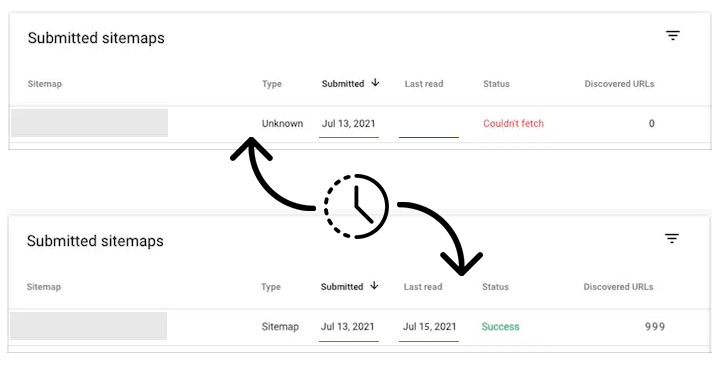
After submission, your sitemap will appear in the Submitted sitemaps list.
Initially, it may show a status such as “Couldn’t fetch” and no Last read date.
This is normal. It simply means that Google has registered the sitemap and queued it for processing. Once Google fetches and processes the file (often within a day or two), the status and last read date will update automatically.
Google does not provide a fixed timeframe. Sitemap processing depends on factors such as:
- crawl budget
- site size and structure
- server responsiveness
You can monitor the status and any detected issues in the Sitemaps report in Google Search Console.
- Log in to your Bing Webmaster Tools account.
- Select your website from the site list at the top.
- In the left sidebar, click Sitemaps, then select Submit sitemap.
- Enter your XML sitemap URL.
- Click Save.
Once you've submitted your Sitemap, you'll need to wait for it to be downloaded and processed by Bing.
After submission, Bing will download and process the sitemap automatically. Bing does not specify an exact processing time. You can track the status using the Sitemaps report in Bing Webmaster Tools.
- Log in to your Yandex Webmaster account.
- Select your website from the list.
- In the left sidebar, go to Indexing > Sitemap files.
- Enter your XML sitemap URL.
- Click Add.
Once you've added your Sitemap, you'll need to wait for it to be downloaded and processed by Yandex.
According to Yandex, sitemap files are usually processed within up to two weeks after submission. You can monitor the status and any messages in the Sitemap files section of Yandex Webmaster.
Can’t find the answers you’re looking for? We’re here to help.
Contact support

 Secure Checkout